

1: Join a Room
Join with a QR Code
Step 1. Scan the QR code displayed by the host using your device.
Step 2. You have now joined the room.
If the room is password-protected, enter the password.
Join from the Website
Step 1. Open the website.
Step 2. At the top of the site, enter the room you want to join in Enter event name.
Step 3. Click Join.

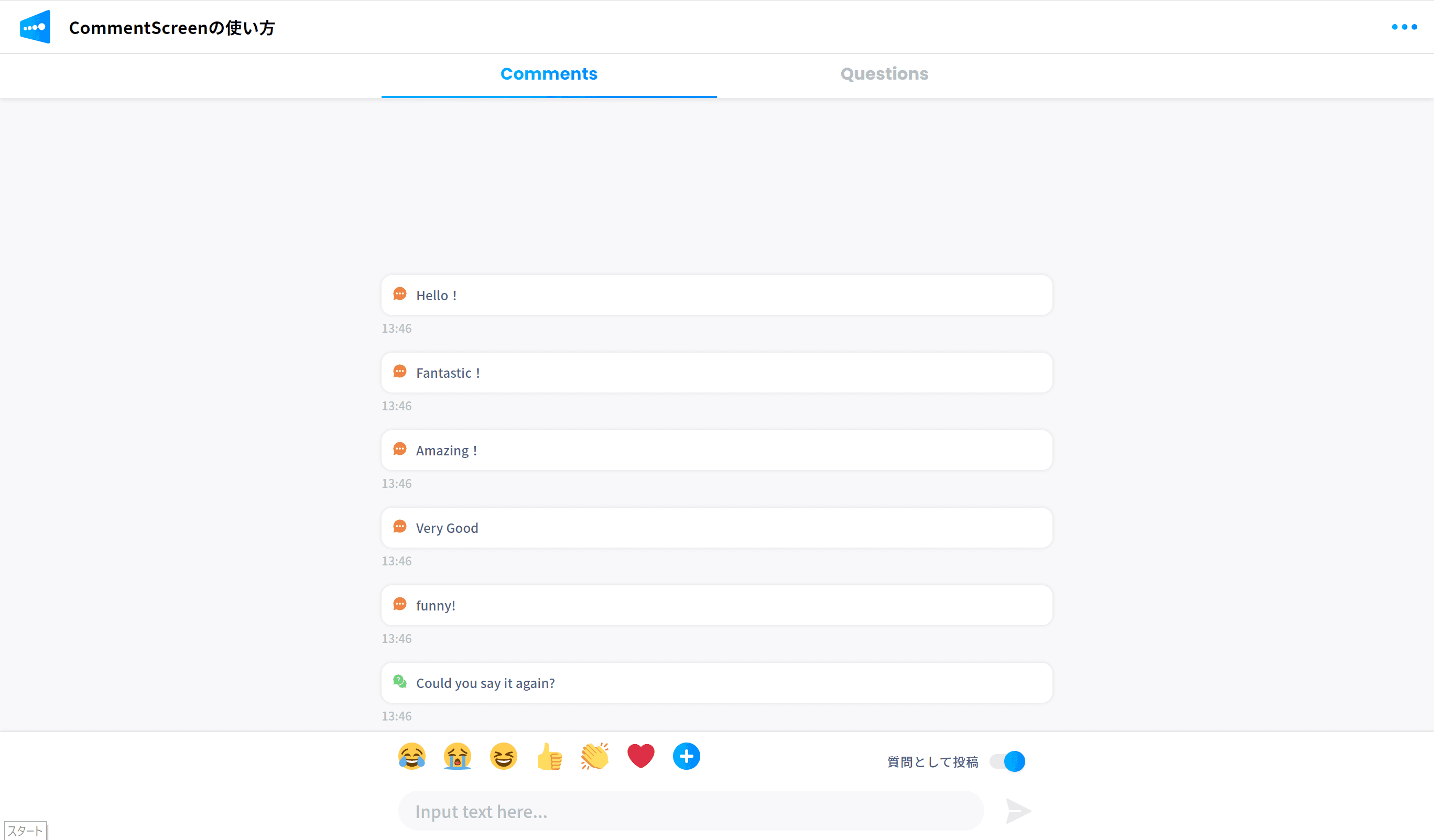
Step 4. You have now joined the room.
If the room is password-protected, enter the password.
2: Post a Comment
Step 1. After joining the event, the comment page appears.
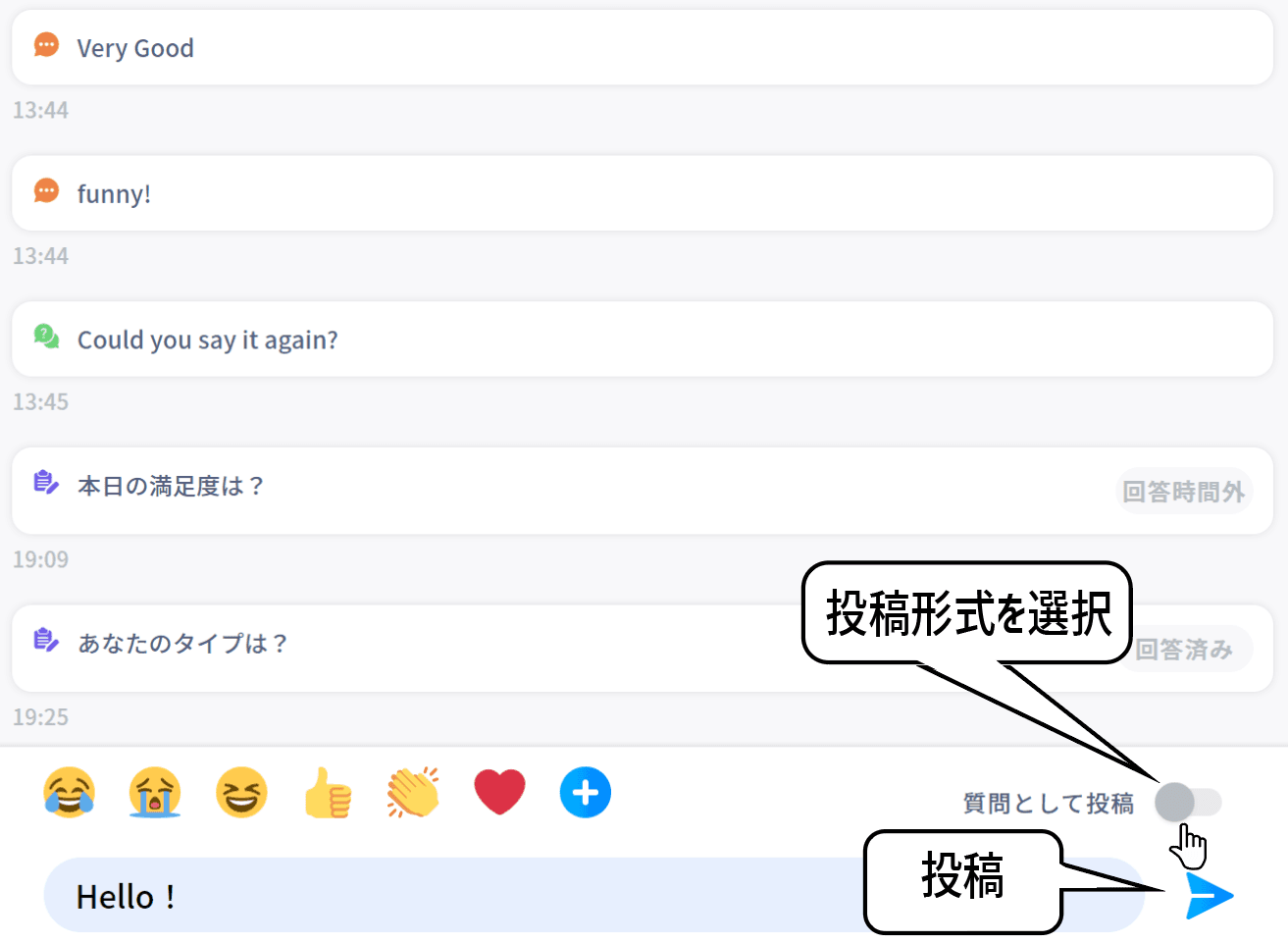
Step 2. Enter your comment in Input text here… at the bottom of the screen. You can send up to 30 characters.
Step 3. Click the paper airplane icon on the right to post it.
Comments posted with Post as a question enabled at the bottom right are categorized under Questions.
3: Send Emoji
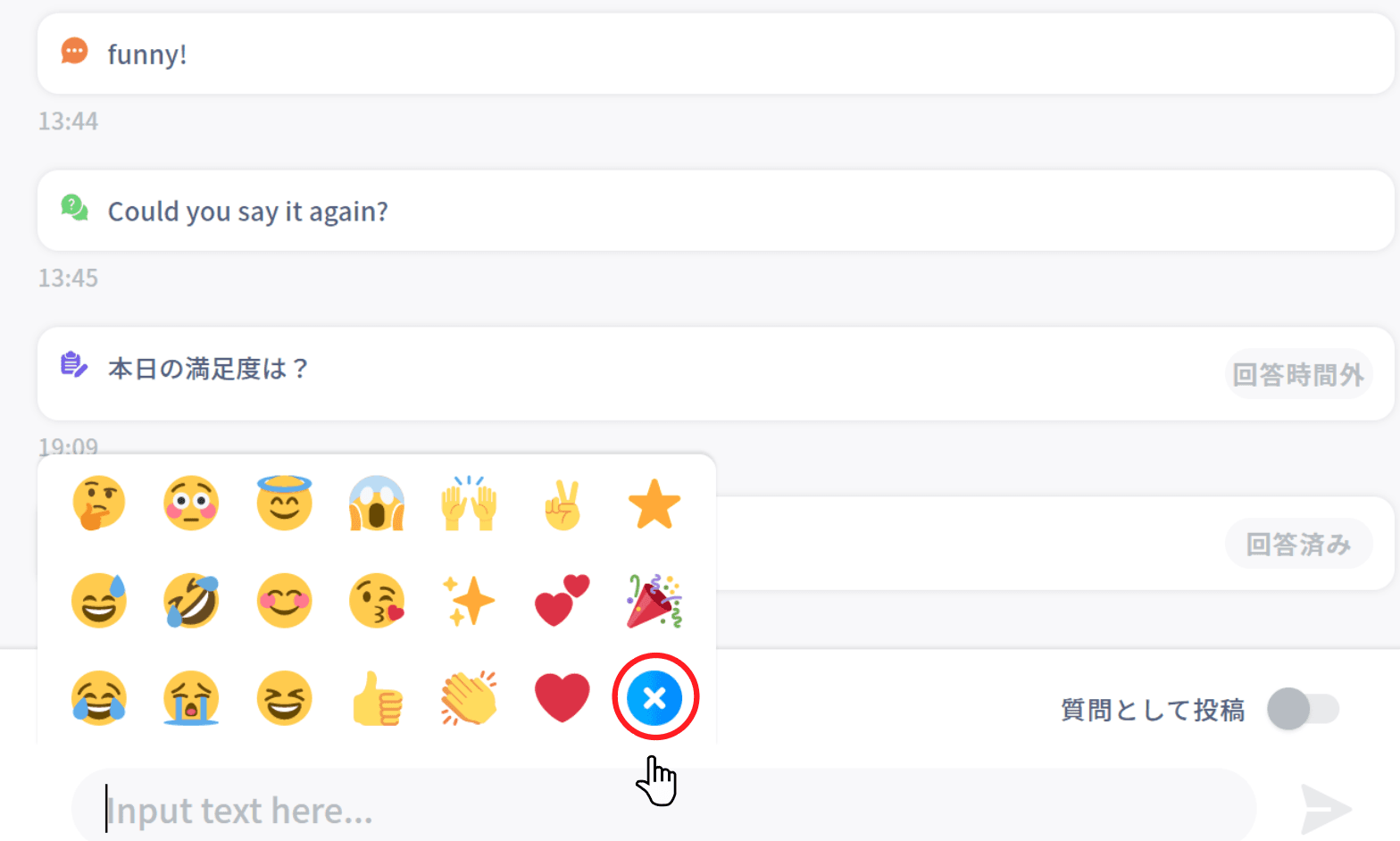
Click an emoji at the bottom of the comment page to send it.
Click the + icon to see all emoji, or the ✖ icon to return.
4: Answer a Poll
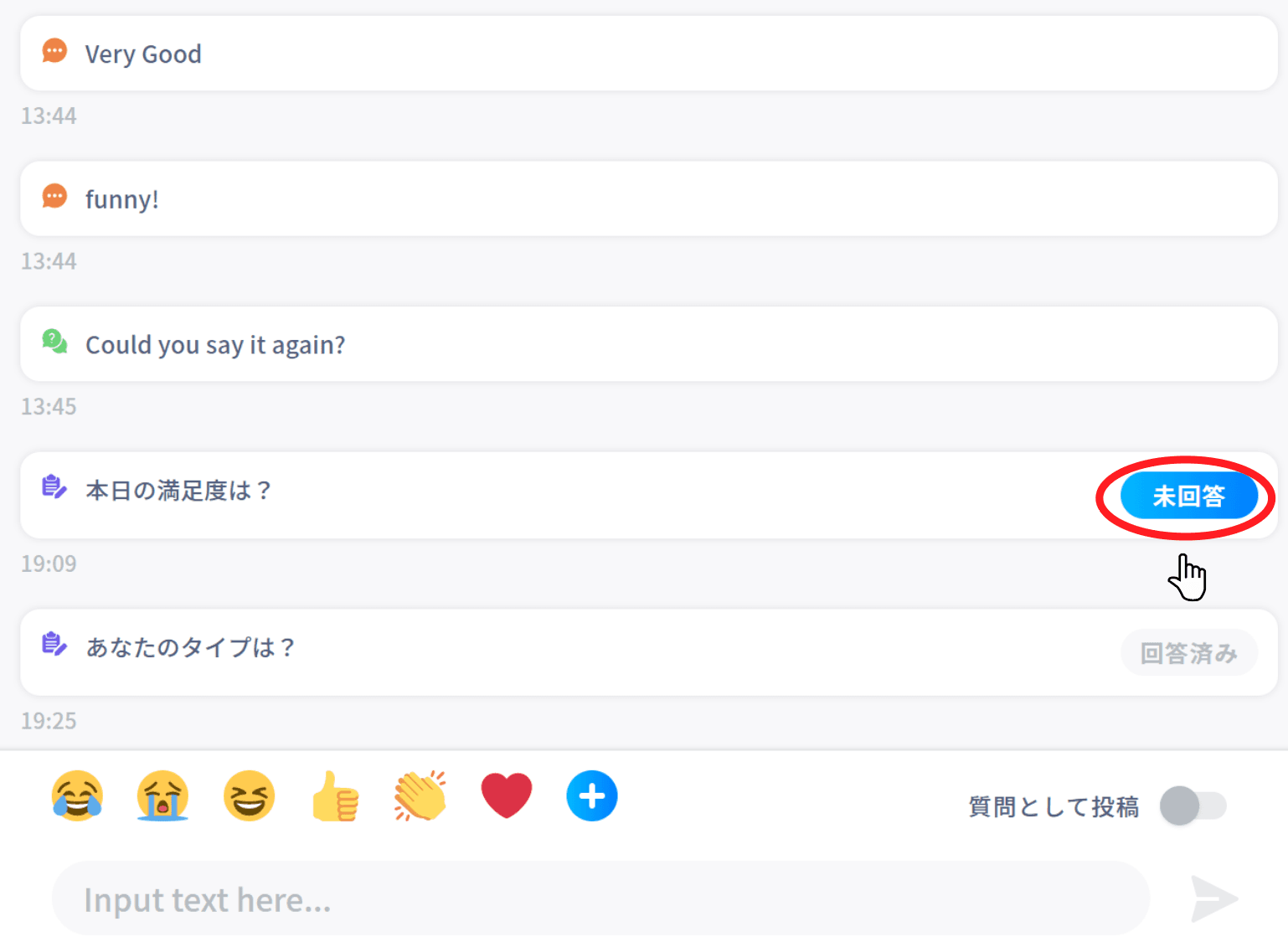
Step 1. When the host opens a poll, Unanswered appears to its right on the comment page. Click it.
Step 2. Choose an answer and click Send.
5: Set a Nickname
You can change the nickname displayed with your comments.
Step 1. Click … at the top right of the screen.
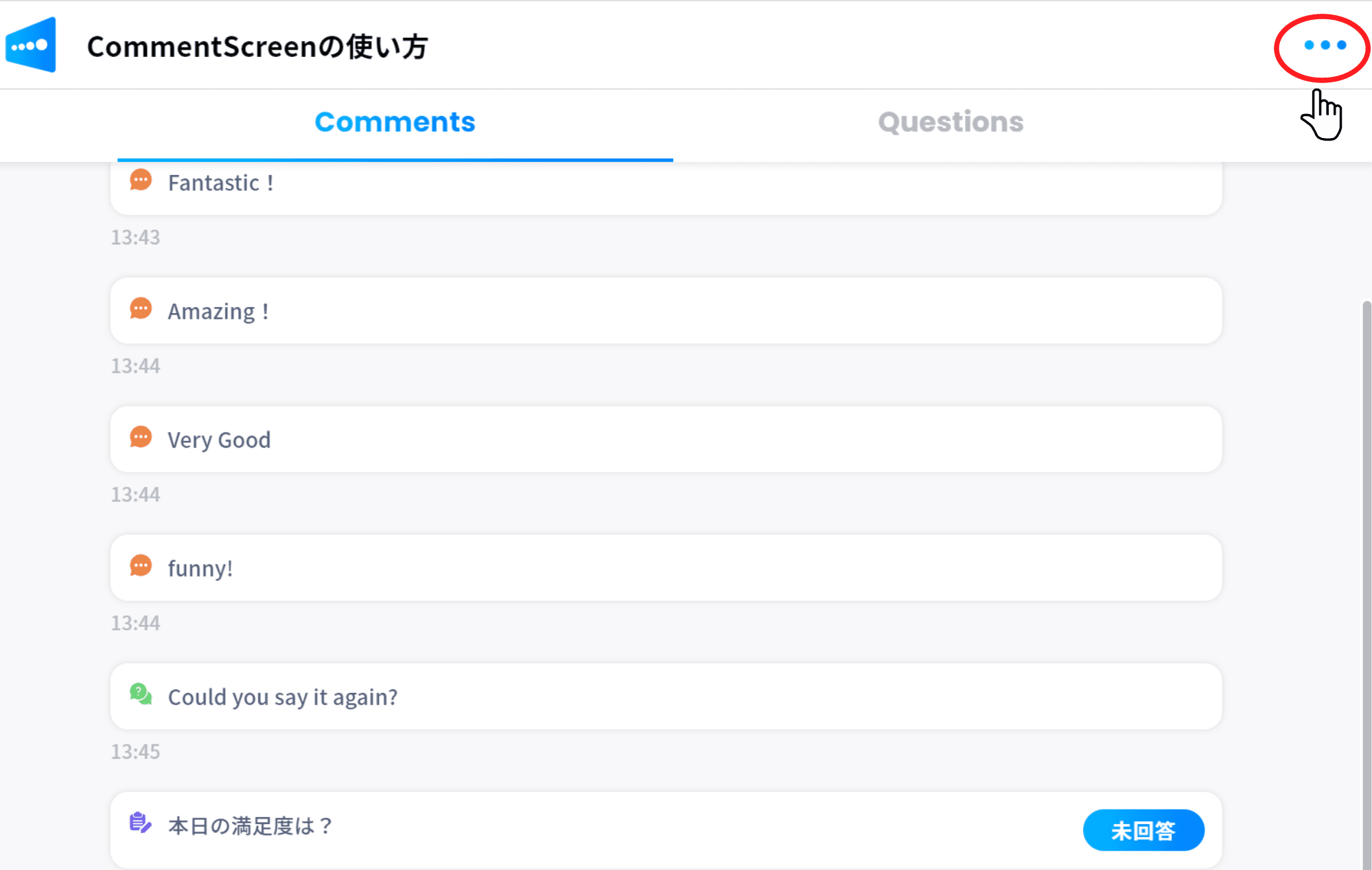
Step 2. Click Set nickname and enter a nickname.
Step 3. Click Send to save the change.